> ## Documentation Index
> Fetch the complete documentation index at: https://docs-dev-docs-free-tenant-inactivity-policy.mintlify.site/llms.txt
> Use this file to discover all available pages before exploring further.

> Describes how to use the Vault of Forms for Actions.

# Vaults

The vault lets you securely store secrets or common settings (for example: API keys, <Tooltip tip="Access Token: Authorization credential, in the form of an opaque string or JWT, used to access an API." cta="View Glossary" href="/docs/glossary?term=access+tokens">access tokens</Tooltip>, <Tooltip tip="Access Token: Authorization credential, in the form of an opaque string or JWT, used to access an API." cta="View Glossary" href="/docs/glossary?term=refresh+tokens">refresh tokens</Tooltip>) to authenticate requests with external services or integrations as vault connections.

<Callout icon="file-lines" color="#0EA5E9" iconType="regular">
  * There are connections that require the user to provide credentials (for example, with an Auth0 with a machine-to-machine (M2M) application, you generate an access token with an expiration time and a refresh token). The connection stores both tokens and generates a new access token before it expires.
  * There are external services that require authorizing scopes to generate API credentials. If you change the scopes, update the connection to those services to avoid connection issues.
  * When a connection is added, it is ready to use in your flows. Any updates to an existing connection will propagate automatically.
</Callout>

## Create and modify vault connections

Create and modify vault connections from the vault page or from the flow editor when an action requires credentials.

### Create vault connections from the vault page

Add a vault connection from the vault page by following these steps:

1. Open the Form editor by selecting **Auth0 Dashboard > Actions > Forms.**
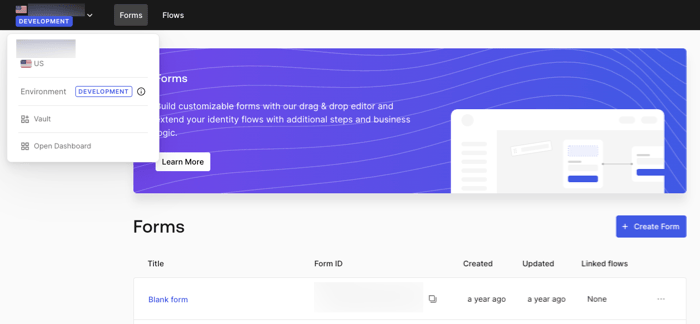
2. From the top left corner, select the tenant menu, and then **Vault** to open the vault page.
   <Frame>
     <img src="https://mintcdn.com/docs-dev-docs-free-tenant-inactivity-policy/2Ak17d_u3ODX3TIy/docs/images/cdy7uua7fh8z/1sPNPKO6nuEDCuiYGRWSur/d85dc616170eaf2d7d5f321750863ccf/vault-connection.png?fit=max&auto=format&n=2Ak17d_u3ODX3TIy&q=85&s=f48bbb02a6759a48617d7da3a665ecab" alt="Dashboard > Forms > Vault" data-og-width="700" width="700" data-og-height="324" height="324" data-path="docs/images/cdy7uua7fh8z/1sPNPKO6nuEDCuiYGRWSur/d85dc616170eaf2d7d5f321750863ccf/vault-connection.png" data-optimize="true" data-opv="3" srcset="https://mintcdn.com/docs-dev-docs-free-tenant-inactivity-policy/2Ak17d_u3ODX3TIy/docs/images/cdy7uua7fh8z/1sPNPKO6nuEDCuiYGRWSur/d85dc616170eaf2d7d5f321750863ccf/vault-connection.png?w=280&fit=max&auto=format&n=2Ak17d_u3ODX3TIy&q=85&s=4e93b8e51901d8157dbc3b1445165f66 280w, https://mintcdn.com/docs-dev-docs-free-tenant-inactivity-policy/2Ak17d_u3ODX3TIy/docs/images/cdy7uua7fh8z/1sPNPKO6nuEDCuiYGRWSur/d85dc616170eaf2d7d5f321750863ccf/vault-connection.png?w=560&fit=max&auto=format&n=2Ak17d_u3ODX3TIy&q=85&s=1444512fef2499f76a58c740409b0b15 560w, https://mintcdn.com/docs-dev-docs-free-tenant-inactivity-policy/2Ak17d_u3ODX3TIy/docs/images/cdy7uua7fh8z/1sPNPKO6nuEDCuiYGRWSur/d85dc616170eaf2d7d5f321750863ccf/vault-connection.png?w=840&fit=max&auto=format&n=2Ak17d_u3ODX3TIy&q=85&s=3e66ffaf152c53bb1b09f86b3ce0268a 840w, https://mintcdn.com/docs-dev-docs-free-tenant-inactivity-policy/2Ak17d_u3ODX3TIy/docs/images/cdy7uua7fh8z/1sPNPKO6nuEDCuiYGRWSur/d85dc616170eaf2d7d5f321750863ccf/vault-connection.png?w=1100&fit=max&auto=format&n=2Ak17d_u3ODX3TIy&q=85&s=5dab98cccf53d3820fb9242e09498f07 1100w, https://mintcdn.com/docs-dev-docs-free-tenant-inactivity-policy/2Ak17d_u3ODX3TIy/docs/images/cdy7uua7fh8z/1sPNPKO6nuEDCuiYGRWSur/d85dc616170eaf2d7d5f321750863ccf/vault-connection.png?w=1650&fit=max&auto=format&n=2Ak17d_u3ODX3TIy&q=85&s=d05a0f6862b391133b97c0f36a43a6d9 1650w, https://mintcdn.com/docs-dev-docs-free-tenant-inactivity-policy/2Ak17d_u3ODX3TIy/docs/images/cdy7uua7fh8z/1sPNPKO6nuEDCuiYGRWSur/d85dc616170eaf2d7d5f321750863ccf/vault-connection.png?w=2500&fit=max&auto=format&n=2Ak17d_u3ODX3TIy&q=85&s=0d6a2933245e2db58f882e01297c9fb5 2500w" />
   </Frame>
3. Select **Add Vault Connection**.
4. Select the desired action and **Continue**.
5. Add a vault **Connection name** and select **Continue**.
6. Enter the credentials.
   If you don't have the specific credentials, you can select **Create an empty connection** and add the credentials later. Empty connections have an orange icon indicating missing credentials.
7. select **Add Vault Connection**.

### Create vault connections from the flow editor

Add a vault connection from a flow action, for example: Twilio by following these steps:

1. Open the Flow editor by selecting **Auth0 Dashboard > Actions > Forms > Flows**
2. Select a flow and add a **Send SMS with Twilio** action.
3. From the **Vault connection** setting of the action, select the **+** Icon.

   <Frame>
     <img src="https://mintcdn.com/docs-dev-docs-free-tenant-inactivity-policy/5q8_o0J_1fJpTlDK/docs/images/cdy7uua7fh8z/1AsaznhRKxm5LZxPlcbfUw/10e5a8af700aab909f5b03fcd266da7e/twilio-vault-connection.png?fit=max&auto=format&n=5q8_o0J_1fJpTlDK&q=85&s=1bced9ea6535ca5504f21fb2c69a093d" alt="Dashboard > Forms > Vault " data-og-width="1104" width="1104" data-og-height="191" height="191" data-path="docs/images/cdy7uua7fh8z/1AsaznhRKxm5LZxPlcbfUw/10e5a8af700aab909f5b03fcd266da7e/twilio-vault-connection.png" data-optimize="true" data-opv="3" srcset="https://mintcdn.com/docs-dev-docs-free-tenant-inactivity-policy/5q8_o0J_1fJpTlDK/docs/images/cdy7uua7fh8z/1AsaznhRKxm5LZxPlcbfUw/10e5a8af700aab909f5b03fcd266da7e/twilio-vault-connection.png?w=280&fit=max&auto=format&n=5q8_o0J_1fJpTlDK&q=85&s=637dbd899f95e7f8ea6b16e136307f1d 280w, https://mintcdn.com/docs-dev-docs-free-tenant-inactivity-policy/5q8_o0J_1fJpTlDK/docs/images/cdy7uua7fh8z/1AsaznhRKxm5LZxPlcbfUw/10e5a8af700aab909f5b03fcd266da7e/twilio-vault-connection.png?w=560&fit=max&auto=format&n=5q8_o0J_1fJpTlDK&q=85&s=bd11e6570a135b83f71289391a6c77fa 560w, https://mintcdn.com/docs-dev-docs-free-tenant-inactivity-policy/5q8_o0J_1fJpTlDK/docs/images/cdy7uua7fh8z/1AsaznhRKxm5LZxPlcbfUw/10e5a8af700aab909f5b03fcd266da7e/twilio-vault-connection.png?w=840&fit=max&auto=format&n=5q8_o0J_1fJpTlDK&q=85&s=ba67156b3e5cdf2658b3e9ea8d671bc3 840w, https://mintcdn.com/docs-dev-docs-free-tenant-inactivity-policy/5q8_o0J_1fJpTlDK/docs/images/cdy7uua7fh8z/1AsaznhRKxm5LZxPlcbfUw/10e5a8af700aab909f5b03fcd266da7e/twilio-vault-connection.png?w=1100&fit=max&auto=format&n=5q8_o0J_1fJpTlDK&q=85&s=9eb00f5e28d4b2332a5d49d78825ee06 1100w, https://mintcdn.com/docs-dev-docs-free-tenant-inactivity-policy/5q8_o0J_1fJpTlDK/docs/images/cdy7uua7fh8z/1AsaznhRKxm5LZxPlcbfUw/10e5a8af700aab909f5b03fcd266da7e/twilio-vault-connection.png?w=1650&fit=max&auto=format&n=5q8_o0J_1fJpTlDK&q=85&s=499f3d374e5b5dd406c78629c61042de 1650w, https://mintcdn.com/docs-dev-docs-free-tenant-inactivity-policy/5q8_o0J_1fJpTlDK/docs/images/cdy7uua7fh8z/1AsaznhRKxm5LZxPlcbfUw/10e5a8af700aab909f5b03fcd266da7e/twilio-vault-connection.png?w=2500&fit=max&auto=format&n=5q8_o0J_1fJpTlDK&q=85&s=3867d4481f08fb3095c172e37fb7a304 2500w" />
   </Frame>
4. Add a vault **Connection name** and select **Continue**.
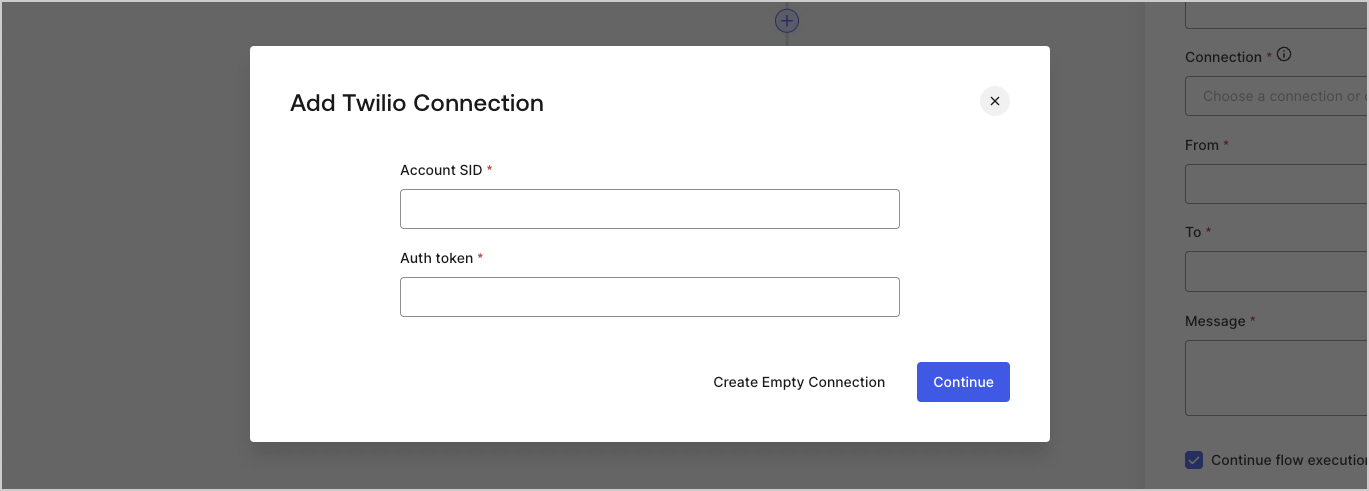
5. Enter the credentials.
   If you don't have the specific credentials, you can select **Create an empty connection** and add the credentials later. Empty connections have an orange icon indicating missing credentials.
   <Frame>
     <img src="https://mintcdn.com/docs-dev-docs-free-tenant-inactivity-policy/tMMTLw_XFpeXRMhq/docs/images/cdy7uua7fh8z/yobXanutPRCO3FWek8cOk/bc29e39fb8593cff35e2738234bfe6fe/twilio-vault-settings.png?fit=max&auto=format&n=tMMTLw_XFpeXRMhq&q=85&s=a46984b298c13c2d128e4f68bc89589d" alt="Dashboard > Forms > Vault > Twilio connection settings" data-og-width="1369" width="1369" data-og-height="491" height="491" data-path="docs/images/cdy7uua7fh8z/yobXanutPRCO3FWek8cOk/bc29e39fb8593cff35e2738234bfe6fe/twilio-vault-settings.png" data-optimize="true" data-opv="3" srcset="https://mintcdn.com/docs-dev-docs-free-tenant-inactivity-policy/tMMTLw_XFpeXRMhq/docs/images/cdy7uua7fh8z/yobXanutPRCO3FWek8cOk/bc29e39fb8593cff35e2738234bfe6fe/twilio-vault-settings.png?w=280&fit=max&auto=format&n=tMMTLw_XFpeXRMhq&q=85&s=8f9840ea93aef9a22ea358a10fe33da8 280w, https://mintcdn.com/docs-dev-docs-free-tenant-inactivity-policy/tMMTLw_XFpeXRMhq/docs/images/cdy7uua7fh8z/yobXanutPRCO3FWek8cOk/bc29e39fb8593cff35e2738234bfe6fe/twilio-vault-settings.png?w=560&fit=max&auto=format&n=tMMTLw_XFpeXRMhq&q=85&s=611b4acd01535558591fb0ee841e5df0 560w, https://mintcdn.com/docs-dev-docs-free-tenant-inactivity-policy/tMMTLw_XFpeXRMhq/docs/images/cdy7uua7fh8z/yobXanutPRCO3FWek8cOk/bc29e39fb8593cff35e2738234bfe6fe/twilio-vault-settings.png?w=840&fit=max&auto=format&n=tMMTLw_XFpeXRMhq&q=85&s=0bf26fbcae66190d5e948ca923dc4b19 840w, https://mintcdn.com/docs-dev-docs-free-tenant-inactivity-policy/tMMTLw_XFpeXRMhq/docs/images/cdy7uua7fh8z/yobXanutPRCO3FWek8cOk/bc29e39fb8593cff35e2738234bfe6fe/twilio-vault-settings.png?w=1100&fit=max&auto=format&n=tMMTLw_XFpeXRMhq&q=85&s=1165c2e47fdb6e10d5cea46a3b1eff1b 1100w, https://mintcdn.com/docs-dev-docs-free-tenant-inactivity-policy/tMMTLw_XFpeXRMhq/docs/images/cdy7uua7fh8z/yobXanutPRCO3FWek8cOk/bc29e39fb8593cff35e2738234bfe6fe/twilio-vault-settings.png?w=1650&fit=max&auto=format&n=tMMTLw_XFpeXRMhq&q=85&s=085d9643bfc642ea89cffd9112eeca7c 1650w, https://mintcdn.com/docs-dev-docs-free-tenant-inactivity-policy/tMMTLw_XFpeXRMhq/docs/images/cdy7uua7fh8z/yobXanutPRCO3FWek8cOk/bc29e39fb8593cff35e2738234bfe6fe/twilio-vault-settings.png?w=2500&fit=max&auto=format&n=tMMTLw_XFpeXRMhq&q=85&s=ac2dcff2677a8db495e3c7444eee30fc 2500w" />
   </Frame>
6. Select **Add Vault Connection.**
